View Network Status and Listening Ports on Windows with Netstat
Date Published: 06 June 2012
There are plenty of times when you may need to know which applications are running on which ports on your machine. Some examples of questions this might answer include:
- How can I see which port my application is running on, so I can forward or open that port in my firewall?
- How can I see which applications are actively using my network connection?
- How can I see where applications on my machine are connecting to, whether on my network or on the Internet?
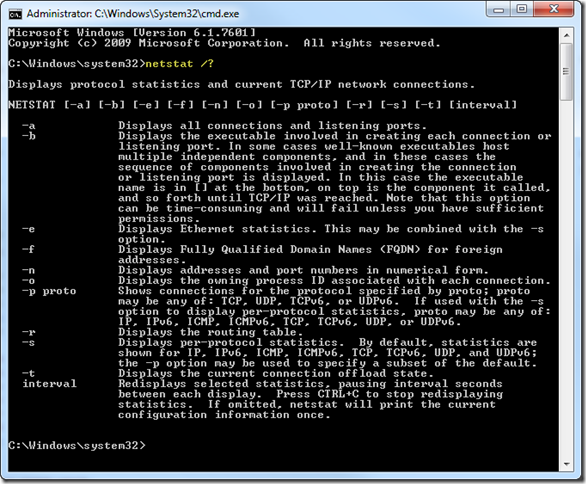
If you’re running a Windows system, the netstat command, run from an elevated (Run As Administrator) command prompt can provide a lot of the answers to these kinds of questions. Like most command line utilities, you can get a lot of information about netstat by simply running it with the /? extension, like so:
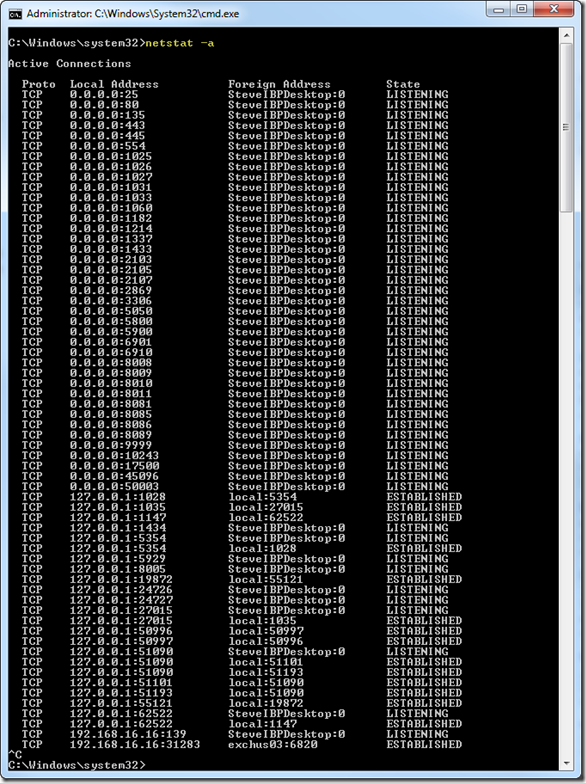
If you just run it with –a, it will show all active connections and their ports, and their state and destination, but nothing else. You can leave netstat running, and will continue to update with additional information. You break out of its execution with ctrl-c. Here’s example output of netstat –a (click to enlarge):
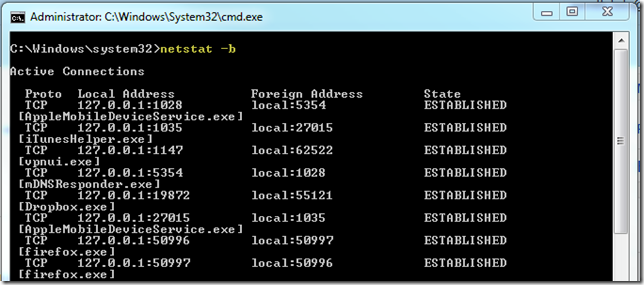
When you add –b to netstat, it will show the process responsible for the port in question. Here you can see Apple, iTunes, DropBox, and Firefox and which ports they’re using:
Of course, you can combine these two to see which processes are simply listening on ports even if they’re not actively using the connection. Running netstat –a –b for me looks like this:

Finally, adding –o can give you the Process ID, which you can use along with Task Manager (or other tools) to find (and kill, if necessary) the process involved in each connection.

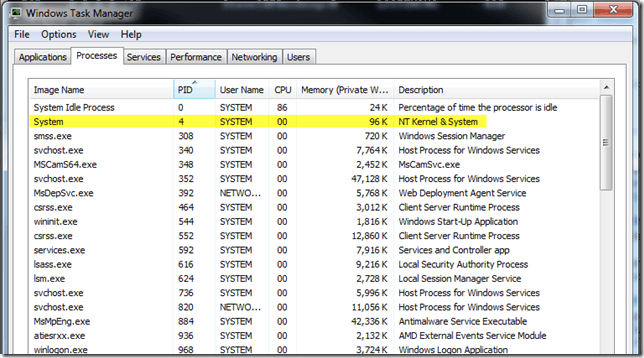
In this case, PID 4 says “Can not obtain ownership information”. Looking in Task Manager, I can see that this process is System:
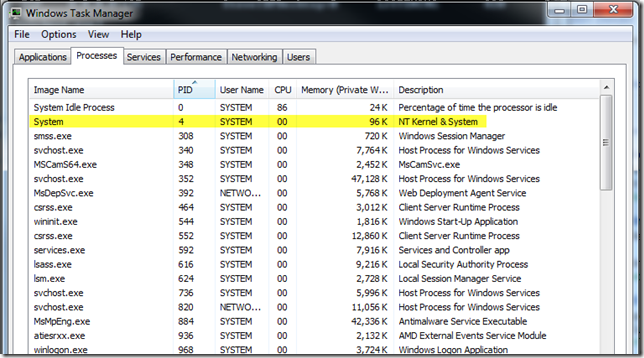
If you don’t see the PID column in Task Manager, you can turn it on under View – Select Columns:

There are a few more features to netstat, but these are the ones I’ve found most useful. Hope this helps, and if you have any particular tricks you’d like to share that relate to these tools or scenarios, please share them or a link to them in the comments.
Category - Browse all categories

About Ardalis
Software Architect
Steve is an experienced software architect and trainer, focusing on code quality and Domain-Driven Design with .NET.