View HTML Source of Email in GMail and Google Apps
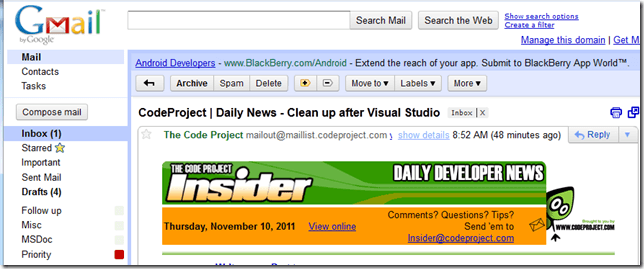
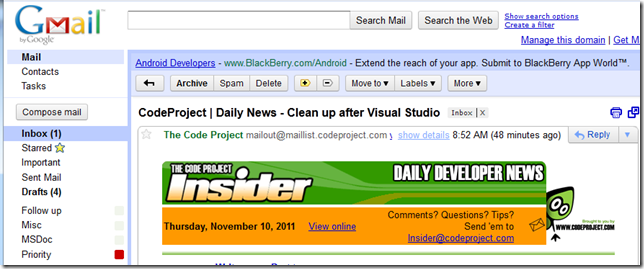
If you’re working on creating a pleasant-looking HTML email template for your site’s newsletter, you’ll want to test it out on the major email clients, including Outlook and GMail. For instance, if you get The Code Project’s Insider Daily News in your GMail inbox, it will look something like this:
Now, if you view the source for this page, you’ll get something that’s less than useful. The whole thing looks like a giant <script> block and has no relation to the HTML that was in your email template. Of course, the interface uses frames (iframes), and depending on your browser you can also view the frame source:

Which will yield this:

How useful!
If you *actually* want to see the HTML markup for an email as it was received by the mail server, the way to do that in GMail or Google Apps is to click the triangle icon in the upper right of the message, and select Show Original:

This will open up a new browser window or tab, with the full email content, including the headers. Something like this, perhaps:

All that and *still* no HTML! But we’re almost there. If you look at the last line of the headers in the image above, you can see that in this case the message says it has Content-Transfer-Encoding: base64. That means that long mess of characters in the body of the message is base64-encoded, which further means that we can easily decode it using any base64 decoder. You can write your own, but there are numerous online tools that will decode base64 for you, including this one I found after a quick search. Simply cut and paste everything below (but not including) the Content-Transfer-Encoding: base64 line into the box on the page and click the button and you should see your decoded, beautiful, actual HTML of your email message. What could be easier than that?

Now just copy the output to Notepad or your HTML editor of choice and you should be ready to make whatever tweaks you and your design team would like.